Quickstart
In this tutorial you set up AgentMySite on your website and ask the assistant your first question. It takes about five minutes.
Before you begin
Section titled “Before you begin”You need:
- An email address you can receive mail at. AgentMySite has no passwords; it emails you a one-time code.
- A document that answers common questions about your business, such as an FAQ or returns policy, in PDF, DOCX, Markdown or plain text.
- Access to edit the HTML of your website, or a test page you can open in a browser.
1. Create your account
Section titled “1. Create your account”-
Go to app.agentmysite.com/signup.
-
Enter your email address and select Send code →.
-
Check your email for a 6-digit code, enter it, and select Verify & create account.
2. Create your site
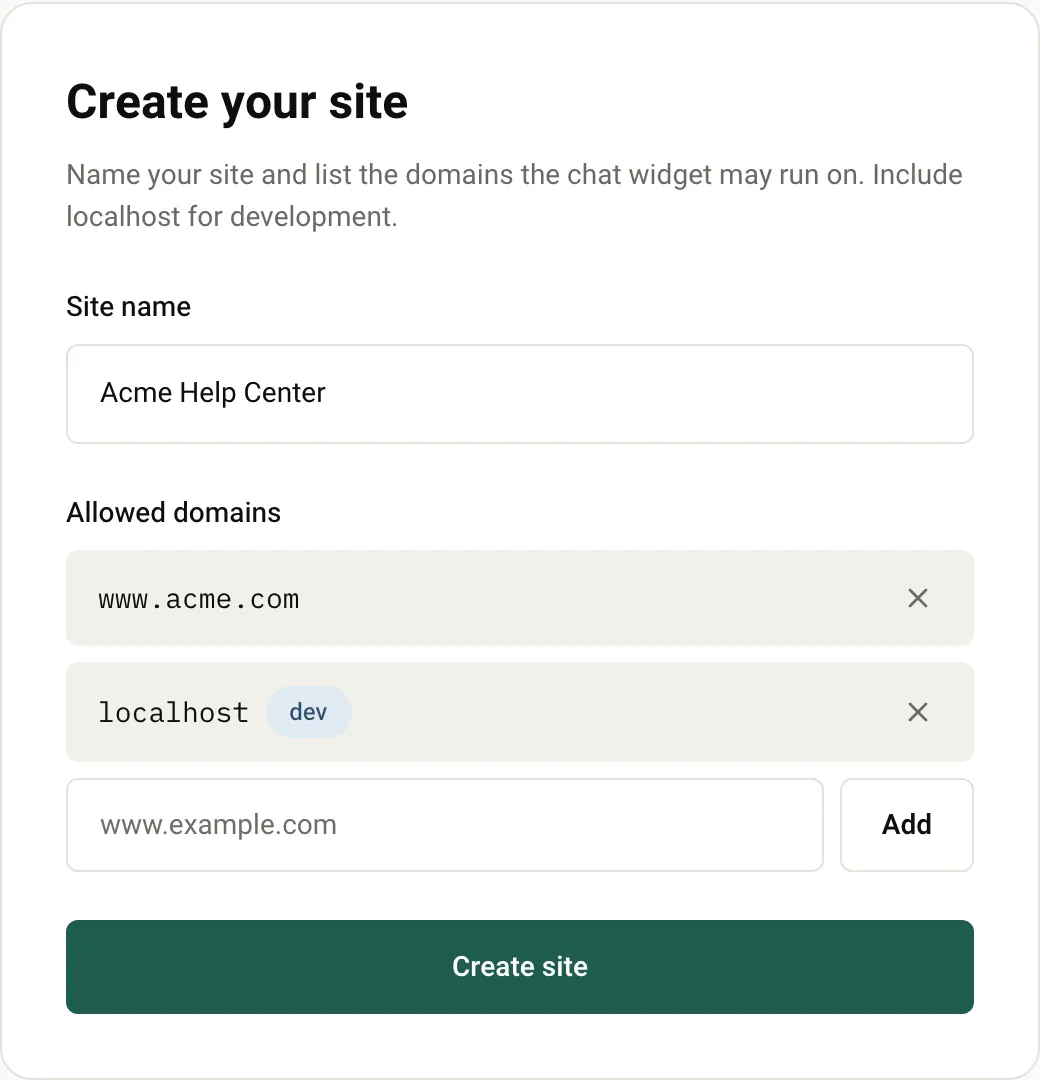
Section titled “2. Create your site”After you sign in for the first time, you see Create your site.
-
In Site name, enter a name, for example
Acme Help Center. -
Under Allowed domains, enter the domain your website runs on, for example
www.acme.com, and add it. The widget only starts on domains in this list. -
Add
localhosttoo if you want to test on your own computer first. -
Select Create site.
3. Add your content
Section titled “3. Add your content”-
In the sidebar, select Documents.
-
Drag your file onto Drag & drop documents here, or click the area to choose a file.
-
Wait until the status changes from Queued and Processing to Ready. This usually takes under a minute for a small document.
4. Install the widget
Section titled “4. Install the widget”-
In the sidebar, select Dashboard.
-
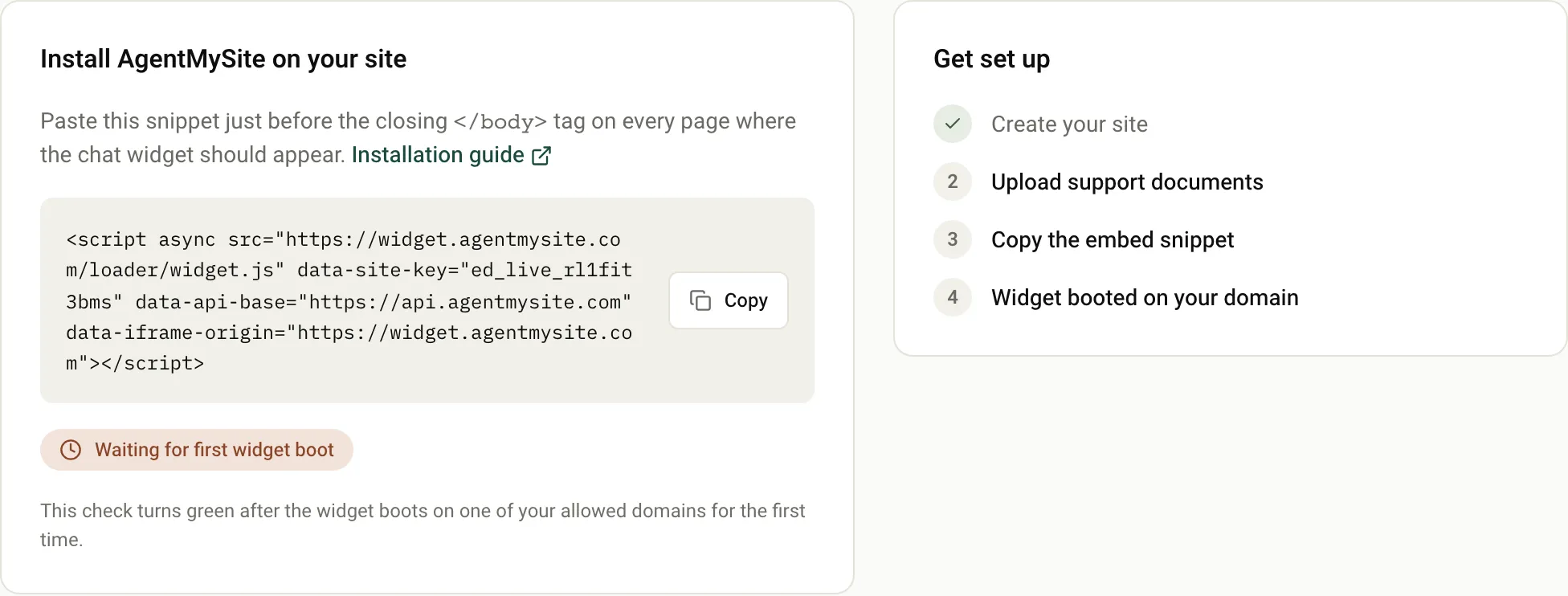
In Install AgentMySite on your site, select Copy to copy your embed snippet. It looks like this, with your own site key:
<script async src="https://widget.agentmysite.com/loader/widget.js" data-site-key="YOUR_SITE_KEY" data-api-base="https://api.agentmysite.com" data-iframe-origin="https://widget.agentmysite.com"></script> -
Paste the snippet just before the closing
</body>tag of your page, then publish or save the page.
5. Ask your first question
Section titled “5. Ask your first question”-
Open your page in a browser. A chat button appears in the bottom-right corner.
-
Select the button and ask a question that your document answers.
-
Back in the admin panel, the dashboard badge changes from Waiting for first widget boot to Widget installed.
The assistant answers from your document. To see the conversation, select Conversations in the sidebar.
If the chat button doesn’t appear, see Troubleshooting.
Next steps
Section titled “Next steps”- Add pages from your website so the assistant knows more.
- Customise the widget with your name, colours and welcome message.
- Learn how credits work.
Was this page helpful?
Thanks for the feedback.