Upload documents
Upload your help articles, policies and guides as files. The assistant answers from every document that reaches Ready.
Supported files
Section titled “Supported files”| Format | Extension | Notes |
|---|---|---|
.pdf | Must contain selectable text. Password-protected PDFs can’t be read. | |
| Word | .docx | Older .doc files aren’t supported. Save them as .docx first. |
| Markdown | .md | |
| Plain text | .txt |
Each file can be up to 100 MB. File names can be up to 255 characters.
Upload files
Section titled “Upload files”-
In the sidebar, select Documents.
-
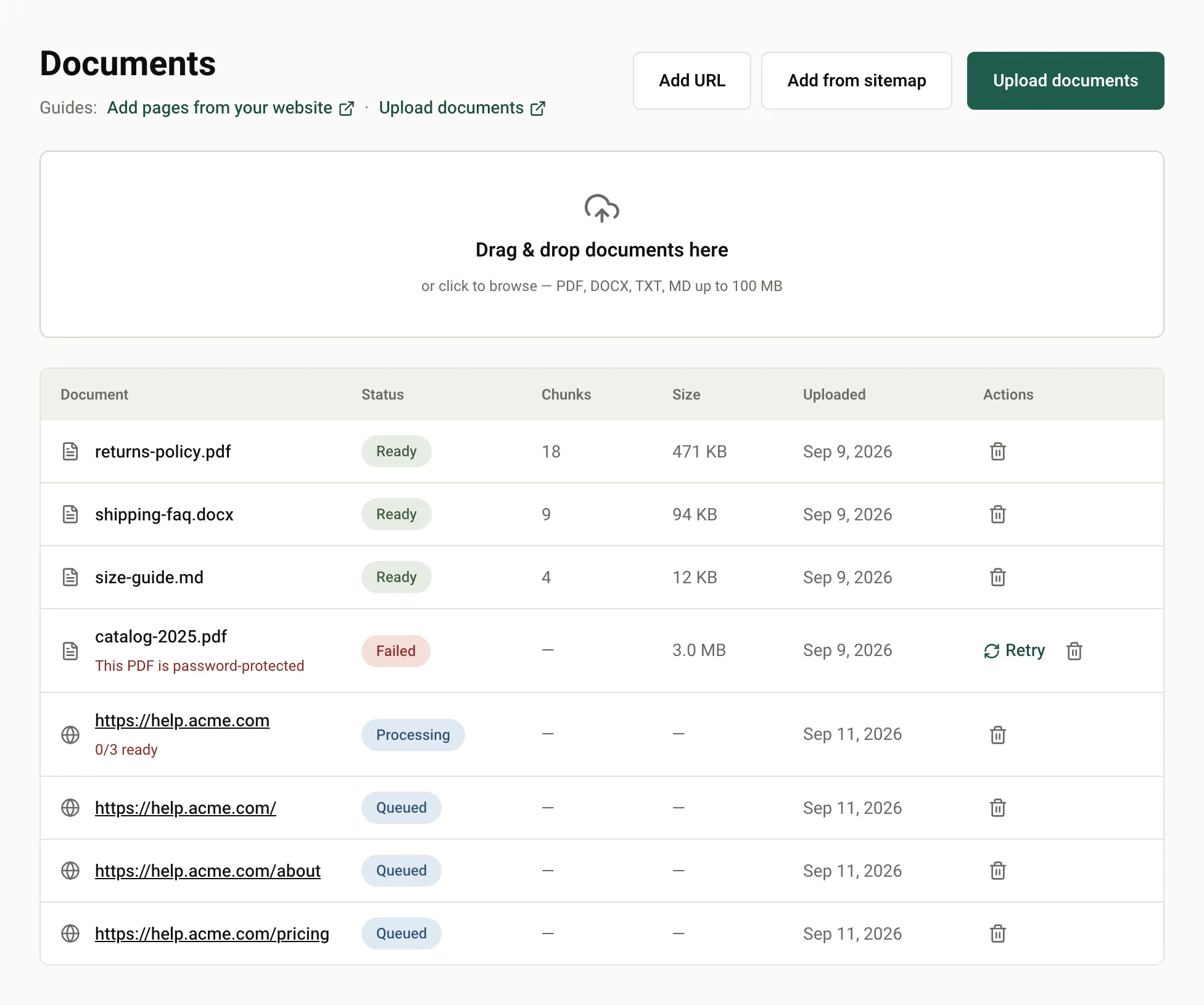
Drag one or more files onto Drag & drop documents here. You can also click the area, or select Upload documents, to choose files.
-
Watch the progress of each file. When the upload finishes, the document appears in the list.
What you should see
Section titled “What you should see”Each document moves through these statuses:
| Status | Meaning |
|---|---|
| Uploading | The file is being sent. |
| Queued | The file is waiting to be processed. |
| Processing | AgentMySite is reading the text and preparing it for search. |
| Ready | The assistant can answer from this document. Chunks shows how many passages it was split into. |
| Failed | The document couldn’t be processed. The reason appears under its name. |
Fix a failed document
Section titled “Fix a failed document”The reason under the file name tells you what went wrong:
-
This PDF is password-protected: remove the password, then upload the file again.
-
No extractable text found in this file: the file has no text AgentMySite can read, for example a scanned PDF made of images. Export a version with real text, or paste the text into a
.txtor.mdfile. Two problems are caught before the upload starts, and appear in the upload progress list: -
Unsupported file type. Only PDF, DOCX, TXT and MD files are allowed.: convert the file to a supported format.
-
File is too large (max 100 MB).: split the file into smaller files.
For other reasons, such as a temporary error, select Retry on the row. The document goes back to Queued.
Delete a document
Section titled “Delete a document”-
Select the trash icon on the document’s row.
-
In Delete document?, select Delete document.
Deleting permanently removes the document and its chunks from the assistant’s knowledge. You can’t undo this.
Next steps
Section titled “Next steps”- Keep content fresh when a document changes.
- Add pages from your website.
Was this page helpful?
Thanks for the feedback.